
OBSCURA Engineering Suite
Foundry: 2D drawings to scale, with AutoCAD’s commands.
This browser’s Pro key was not accepted: the subscription behind it has ended. Renew or subscribe below.
The Engineering Suite onlyUS$4 a month, 7 days free EverythingUS$9 a month, 7 days free Sign in
US$4 a month or US$35 a year for the Engineering Suite, or US$9 a month or US$79 a year for everything. 7 days free. Stripe takes a card, and nothing is charged if you cancel before they end.
- Drafting that snaps
- Every kind of dimension
- ISO fits and tolerances
- Sheets and viewports
- DXF in and out
- 3D parts in the Engineering Suite
Foundry at work
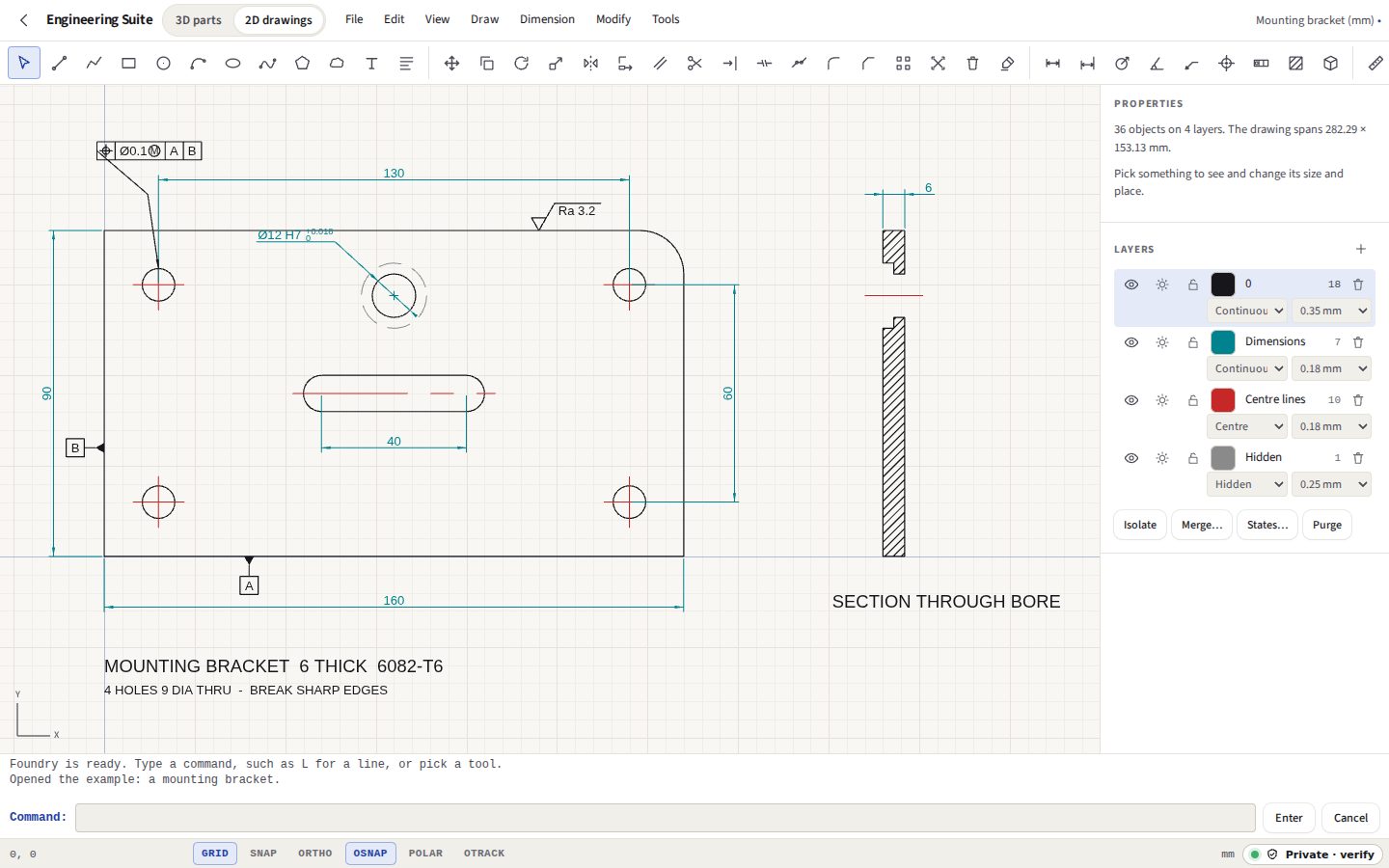
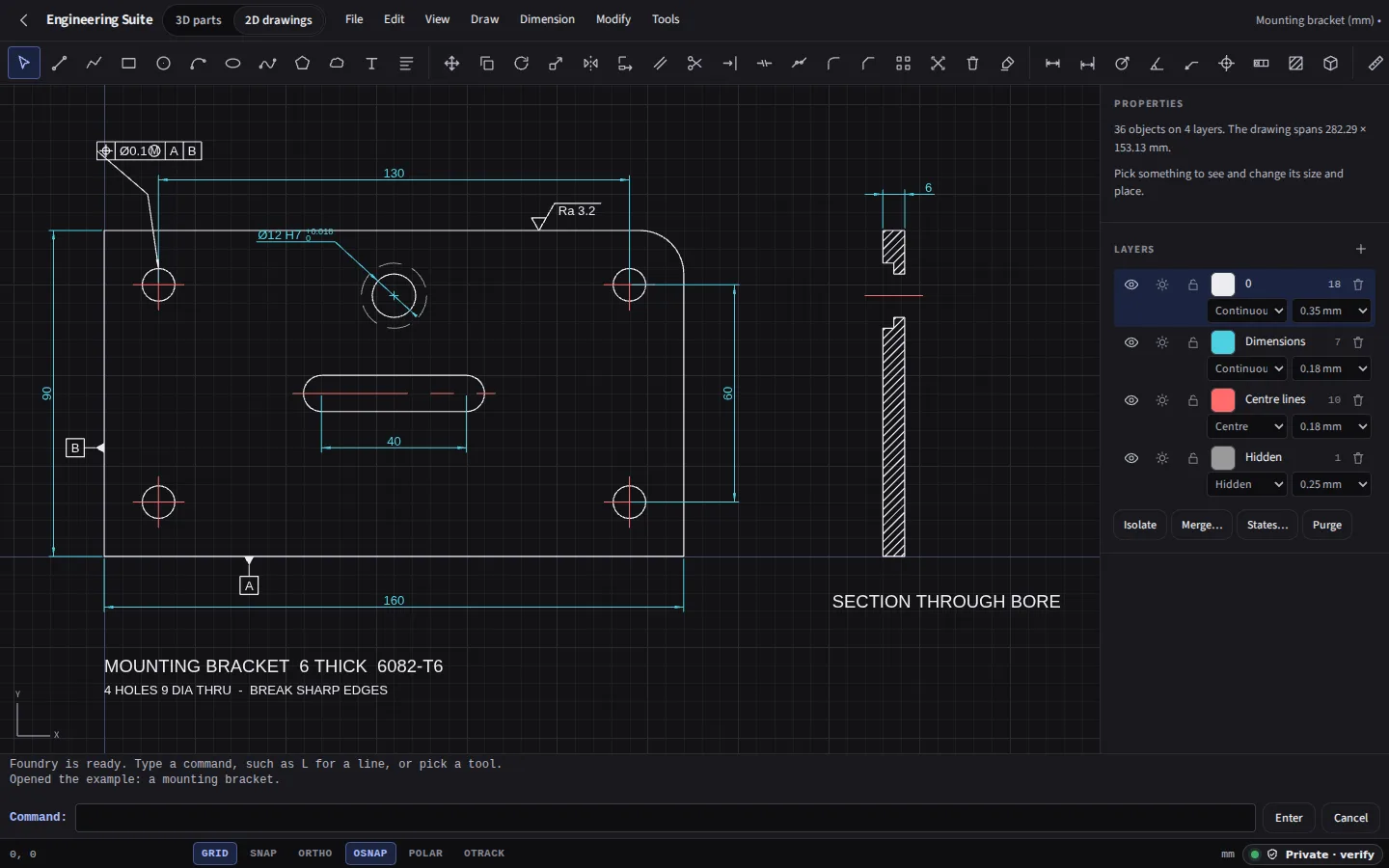
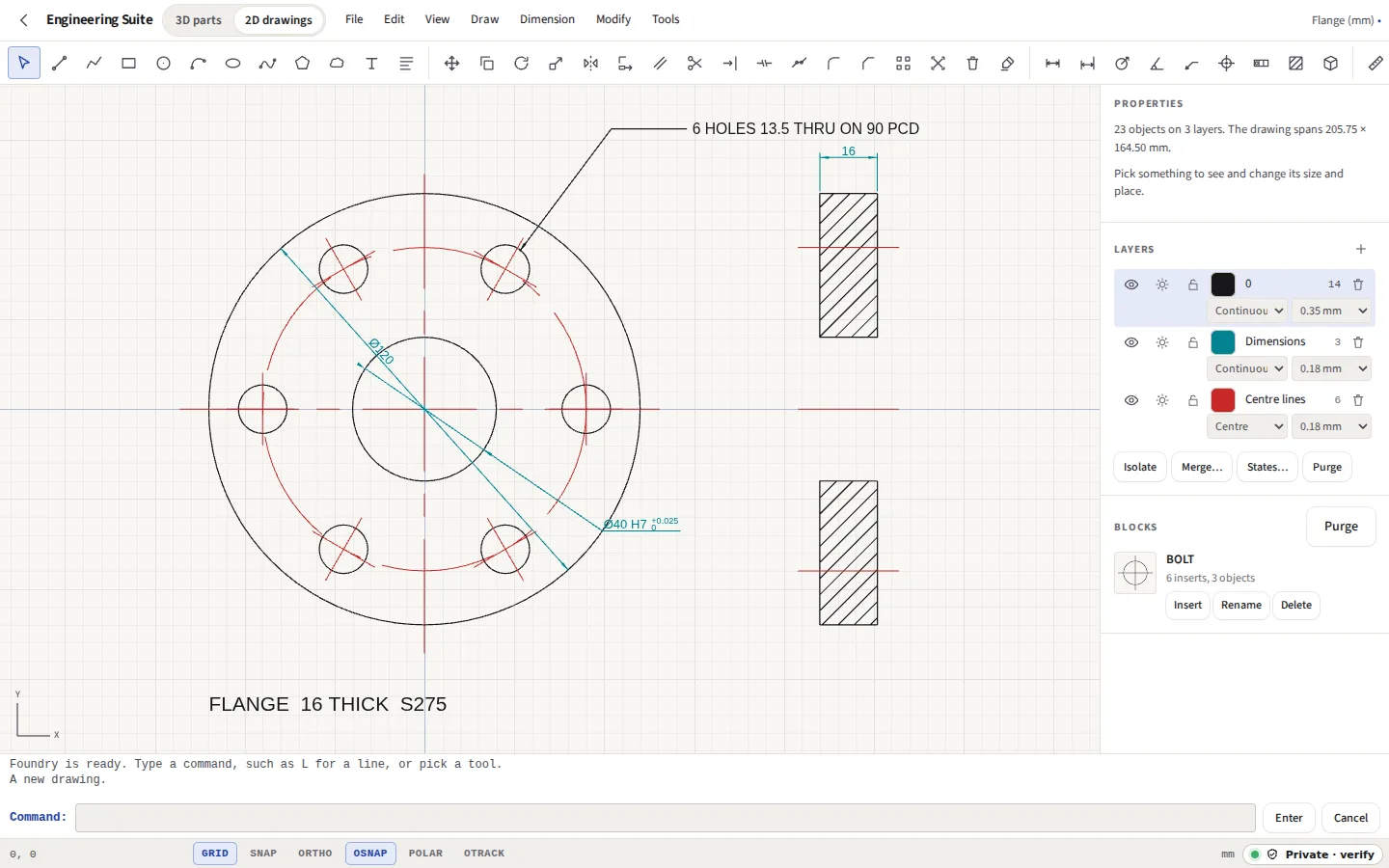
Taken from Foundry itself. Both drawings are made of Foundry’s own objects, drawn by its own renderer.


Everything it does
Draw with AutoCAD’s commands, dimension with ISO fits and tolerances, and print sheets to scale. Your drawings stay on your computer. The 2D side of the Engineering Suite. Hatch a section, lay it out on sheets, trade DXF with any CAD program, and send it to a laser or router as G-code.
Before you start: No DWG: AutoCAD’s own format is not read or written, so open a DXF, which the ODA’s free converter makes from a DWG. What else it does not do
Compared with Tinkercad and AutoCAD LT.
What it does
Foundry works the way a draughtsman who learnt on AutoCAD expects: a command line that takes the same words and aliases (L for a line, TR for trim, DLI for a linear dimension), objects picked before or after the command, grips, and a Properties panel to type into.
Drawing
Lines, polylines with arcs in them, rectangles, circles, arcs, ellipses, splines, polygons, points, construction lines and rays, donuts, revision clouds, single-line text and multiline text with stacked fractions and the drafting symbols.
Snaps and tracking
Object snaps to ends, midpoints, centres, quadrants, crossings, tangents, perpendiculars, nodes and extensions, or asked for by name for one point. Polar tracking every 15° or at your own angle, object snap tracking, ortho, and @10,5 relative input.
Modifying
Move, copy, rotate, scale, mirror, offset, trim, extend, fillet, chamfer, stretch, break, join, lengthen, explode and erase, with grips, and undo for every step. Select by window, crossing, fence, polygon or lasso, by quick select, or everything like what is picked.
Dimensions
Aligned, linear, ordinate, radius, diameter, angle and arc length. Each follows the geometry it measures; if that is deleted, it keeps its last figures. Dimension styles start with ISO-25 and ANSI, and a figure can carry a prefix, a suffix or your own text.
Tolerances
Symmetric (±), deviation (+/−), limits, basic (the figure boxed) or an ISO 286 fit: a hole such as H7, a shaft such as g6, or a pair such as H7/g6, whose clearance or interference the Properties panel gives.
Annotation
Feature control frames with the fourteen geometric characteristics, diameter zones, material condition modifiers and up to three datums; datum feature symbols; ISO 1302 surface texture; basic weld symbols; leaders, balloons, centre marks and centre lines tied to their circles.
Hatching
Pick inside an area, or pick closed objects. Islands are left clear, text inside is not hatched over, and the hatch follows its boundary when the boundary changes. ANSI31 to ANSI38 and steel from AutoCAD’s acadiso.pat, concrete, and solid fill.
Blocks and arrays
Make a block from a selection, insert it scaled, mirrored and turned, give it attributes for what differs between inserts, and redefine it to change every insert. Arrays in a grid, round a centre or along a path stay one object you can change afterwards.
Layers
Colour, linetype, lineweight, visibility, freezing and locking per layer, with AutoCAD’s layer tools: isolate, freeze or turn off by an object, merge one layer into another, purge what nothing uses, and named layer states to go back to.
Asking the drawing
Distance, a point’s coordinates, an angle, a radius, an area by points or by objects with holes taken away, and a region’s mass properties: area, perimeter, centroid and second moments of area.
Units
Millimetres or inches, decimal or architectural lengths, degrees or other angle units, and a drawing converted from one unit to the other with everything in it scaled, or only relabelled if that is what you meant.
Working quickly
AutoCAD’s command aliases, and your own added as acad.pgp would add them; Ctrl K searches every command; the undo history names each step and goes back to any of them with a click. New drawings start from ISO A4 to A0 or ANSI A to D templates, each with its sheet, title block, dimension style and a layer for every kind of line at its standard weight.
Sheets and viewports
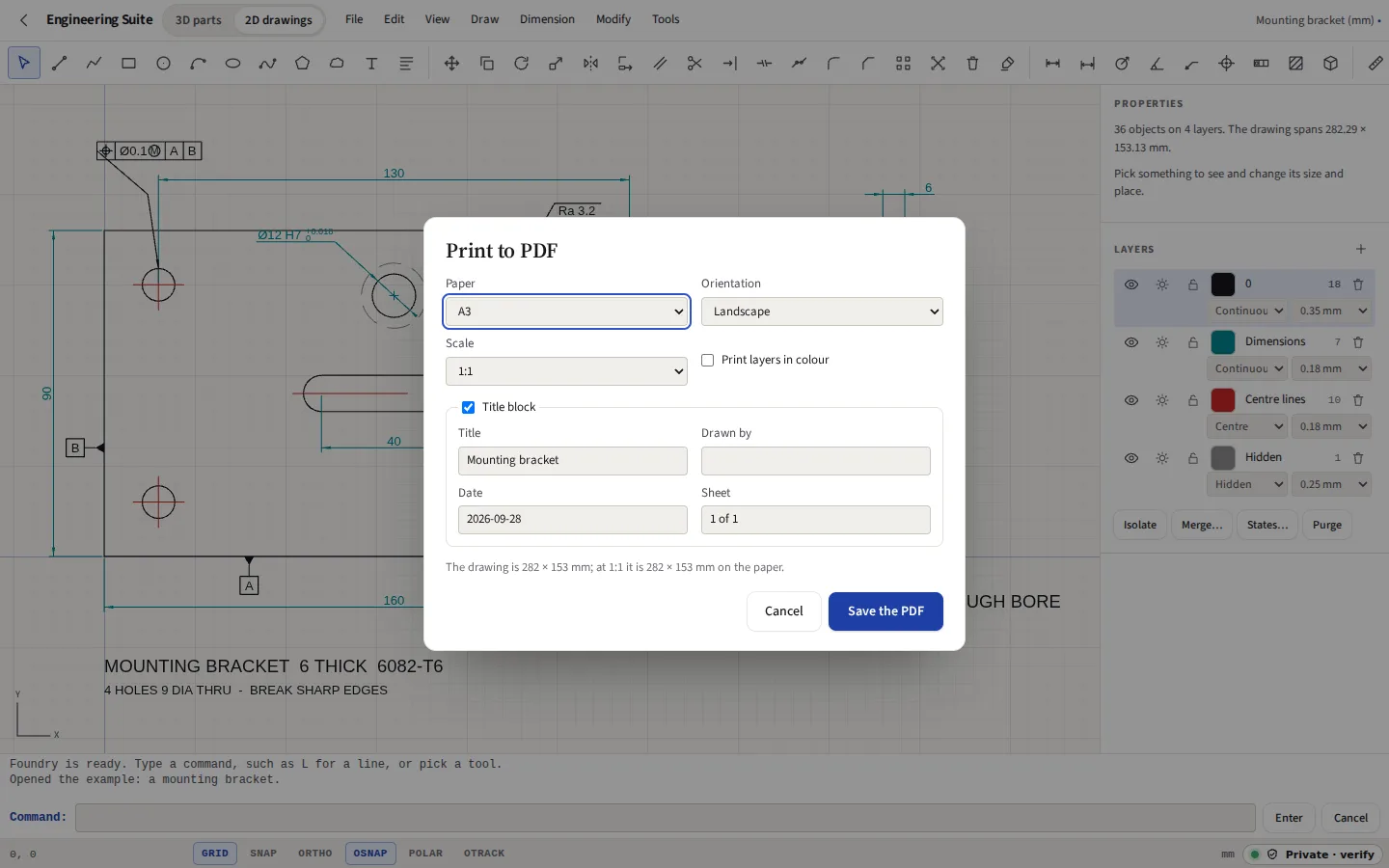
A drawing is its model, drawn full size, and as many sheets as it needs, as AutoCAD has layouts. Each sheet has its paper, an ISO 5457 or ASME Y14.1 frame with zones, a title block and a revision table, or your own block as the title block. Viewports show the model at a scale of their own, with layers hidden in one and not another, so a general arrangement and its details share a sheet. Annotative text and dimensions keep their size on the paper in every viewport, at the scales each supports (ANNOTATIVE, ANNOSCALE, OBJECTSCALE). Every sheet prints as a page of one PDF, in colour, greys or black, or by a plot style table: by colour (.ctb) or named (.stb), Foundry’s own or read from a file, and saved as one.
Constraints
Horizontal, vertical, parallel, perpendicular, collinear, tangent, equal, concentric, coincident, point on a curve, symmetric and fixed, and dimensional constraints for distances, radii, diameters and angles. Each dimension is named and can be set by an expression of the drawing’s parameters (width / 2). They are solved by FreeCAD’s planegcs, as in the 3D sketcher; a change the constraints cannot allow is undone, and the constraints it broke are named.
Tracing over a picture
Put a photograph, a scan or a page of a PDF under the drawing, calibrate it by two points and the real distance between them, fade it, clip it and lock it, then draw over it.
Cutting it out
CAM turns the drawing’s closed shapes into parts and holes and its open lines into engraving, and writes G-code for GRBL or LinuxCNC. The kerf is taken off on the waste side, cuts start with a lead-in, holes are cut before the parts round them, tabs hold parts in the sheet, and a router steps down in passes. Each layer can also go out as its own SVG or DXF for laser software that works by layer.
Nesting
Nest parts on a sheet lays copies of the parts picked on sheets of the size you give, a gap apart and clear of the edge, each turned by a quarter or half turn if that lets it sit lower: a bottom-left fill, biggest parts first, the idea SVGnest starts from, written again here. It is a good fill, not an optimal one. Checked with Shapely on 25 parts of four shapes nested on a 300 × 200 sheet: all inside it, no two nearer than the 3 mm gap, 52% of the sheet used, in under two seconds here.
Faces
A text style is set in Helvetica, DejaVu Sans, DejaVu Sans Mono or Hershey Sans. A DXF’s text styles come in as the nearest of these: every SHX font as Hershey Sans, drawn as single strokes as SHX is; Courier and Consolas as DejaVu Sans Mono; Verdana, Tahoma and ISOCPEUR as DejaVu Sans; Arial as Helvetica. DejaVu is embedded in the PDF, cut down to the letters used, so the PDF shows it on any computer and its text can still be searched.
With the 3D parts
In the 3D parts, File, Make drawing lays a part out on a Foundry sheet: base and projected views in first or third angle, sections, auxiliary and detail views, hidden lines dashed, centre marks, hole callouts, a parts list and a hole table, with the title block filled in from the part. The other way, the 3D parts can bring the drawing open in Foundry into a sketch, in millimetres, to extrude or revolve. Both keep their documents in one list on this device, with versions.
Files it opens and writes
| Format | Opens | Writes | Notes |
|---|---|---|---|
| DXF | Yes | Yes | Opens lines, arcs, circles, polylines with curved runs, ellipses, splines, points, construction lines, text and multiline text, with colours, linetypes and lineweights, and the file’s units converted. Blocks stay blocks with their attributes, dimensions stay dimensions, hatches stay hatches, and layouts come in as sheets with their viewports. Anything it cannot take is counted and named. Writes AutoCAD 2000 (AC1015) by default, with real dimensions, hatches, blocks and attributes, splines and the sheets as layouts; or AutoCAD R12 (AC1009), all lines, arcs and text, for older programs and machines’ software |
| Yes | Yes | Writes vectors at a true scale, with a border and a title block, or every sheet as a page; each layer is a PDF layer a reader can turn off, and DejaVu text has its font embedded. Opens a page’s vector drawing as lines, arcs and text at its true size, or puts the page under the drawing as a picture to trace | |
| SVG | Yes | Yes | Written with a group for each layer, for the web, a laser cutter or a vinyl cutter. Read back as paths, lines, shapes and text |
| PNG, JPEG, WebP, GIF | As a picture | No | Placed under the drawing to trace over, and as a title block’s logo |
| G-code (.nc, .ngc) | No | Yes | For GRBL or LinuxCNC, from CAM |
| Foundry drawing (.foundry) | Yes | Yes | Everything, including the pictures a DXF cannot hold |
| DWG | No | No | Convert it to DXF with the free ODA File Converter, or save a DXF from the program that made it |
What it cannot do yet
- No DWG. AutoCAD’s own format is not read or written, and will not be while it cannot be done honestly at no cost: the one free DWG library, LibreDWG, is under the GPL, which closed software cannot use, and the Open Design Alliance’s is paid for. The ODA’s own File Converter is free and turns DWG into DXF on your computer; open the DXF here. A DWG opened in Foundry says the same.
- Four faces, and lookalikes. Text is set in Helvetica, DejaVu Sans, DejaVu Sans Mono or Hershey Sans. SHX fonts are Autodesk’s and are not reproduced: Hershey Sans is a single-stroke lookalike of the plain ones (txt, simplex, romans, isocp), so a drawing that uses them reads the same but is not identical. There is no serif face: Times and its kind are set in Helvetica. Text in a face is measured by that face’s widths once it has loaded, a moment after the drawing opens.
- External references are copies until reloaded. XATTACH shows another DXF or Foundry drawing inside this one, but a web page cannot open a file by its path, so the drawing keeps a copy of what it referenced and is brought up to date when you choose Reload in XREF. Chrome and Edge read the file again from where it is; other browsers ask for it again. A reference cannot be edited in place: open its own file to change it.
- CAM here is 2D profiling. On a drawing: through cuts and engraving along lines at fixed depths, with no 3D surfaces, no tool changes and no simulation of the material. Pockets and drilled holes at the depths of a 3D part are the 3D parts’ File, CAM, which uses the same paths and G-code. Nesting puts no part inside another’s hole and does not search over the order of parts. Check a program in the machine’s own software, or cut air first.
- Some things go into a DXF differently. Pictures stay in the .foundry file. An array goes out as one block of its copies, which opens here again as an array and elsewhere as a block. An arc length dimension is AutoCAD 2007’s ARC_DIMENSION in a 2007 DXF, and the lines it is drawn with in a 2000 or R12 one. A hatch pattern in a DXF it opens that is not one of Foundry’s keeps the lines the file gives it; only a pattern the file carries no lines for is drawn as ANSI31, and says so. Annotative text and dimensions are written at the size they are drawn at the drawing’s annotation scale, not as AutoCAD’s annotative objects.
- Plot style tables, from their description. A .ctb or .stb is read and written in the layout AutoCAD’s plot style files use, as ezdxf, which reads it back here, describes it; it has not been tried in AutoCAD itself. A table’s pen colours, screening and lineweights are used, and of its linetypes only solid and dashed: the others are AutoCAD’s own patterns.
Compared with AutoCAD LT
An AutoCAD LT alternative for 2D drawings sets the two side by side, with AutoCAD LT’s price and platforms as Autodesk gives them, and says plainly where AutoCAD LT is the better choice. If a drawing you were sent opens at the wrong size, why a DXF opens at the wrong scale explains the units behind it.
Engineering Suite
An empty drawing
Pick a tool above, or type a command and press Enter: L for a line, C for a circle.