OBSCURA Engineering SuiteLoading the geometry kernel…

OBSCURA Engineering Suite
Parametric 3D parts, for printing and machining.
This browser’s Pro key was not accepted: the subscription behind it has ended. Renew or subscribe below.
The Engineering Suite onlyUS$4 a month, 7 days free EverythingUS$9 a month, 7 days free Sign in
US$4 a month or US$35 a year for the Engineering Suite, or US$9 a month or US$79 a year for everything. 7 days free. Stripe takes a card, and nothing is charged if you cancel before they end.
- Constrained sketches
- Parametric features
- Assemblies and a bill of materials
- Stress analysis on the device
- STEP, STL and 3MF
- 2D drawings in Foundry
The suite at work
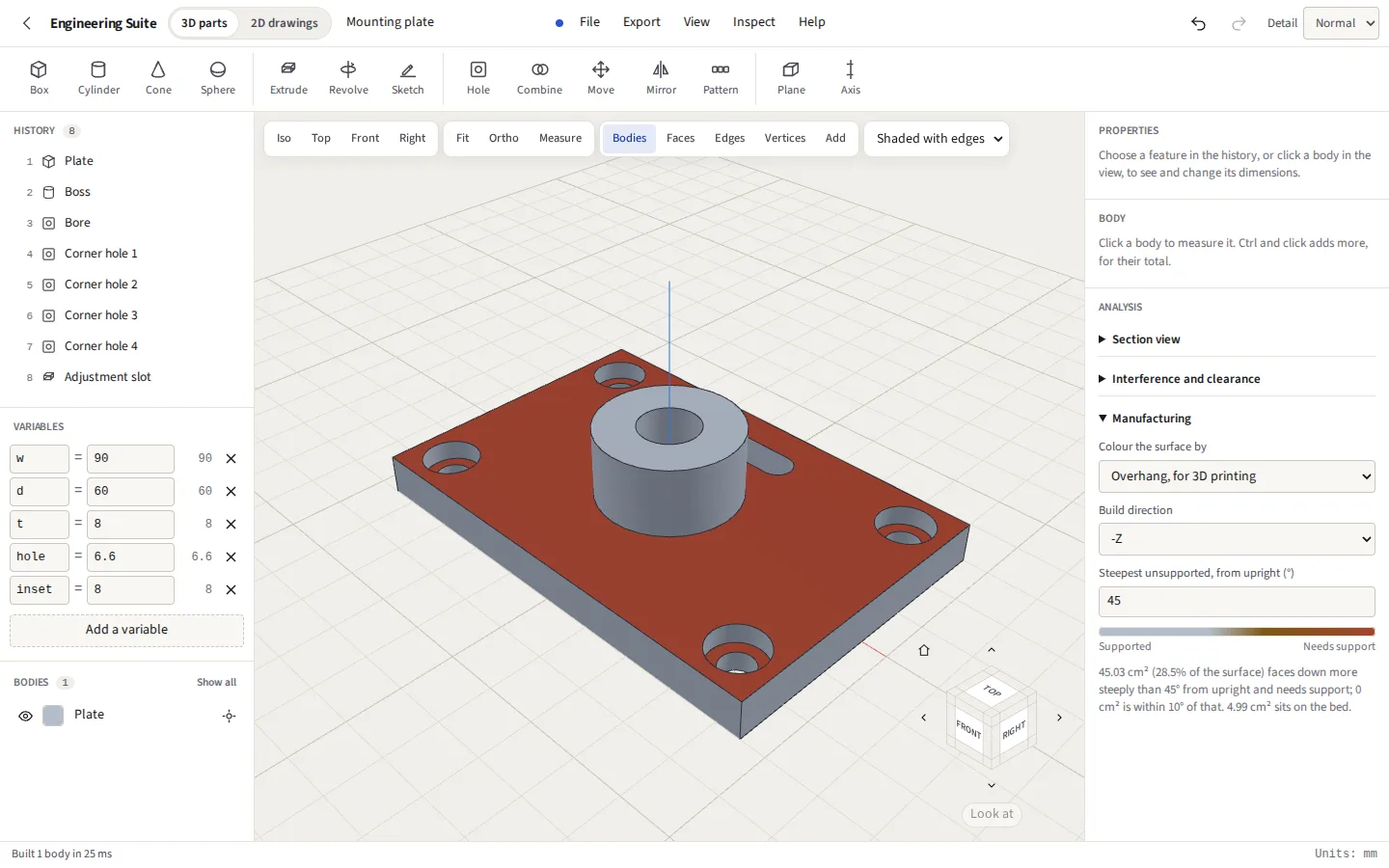
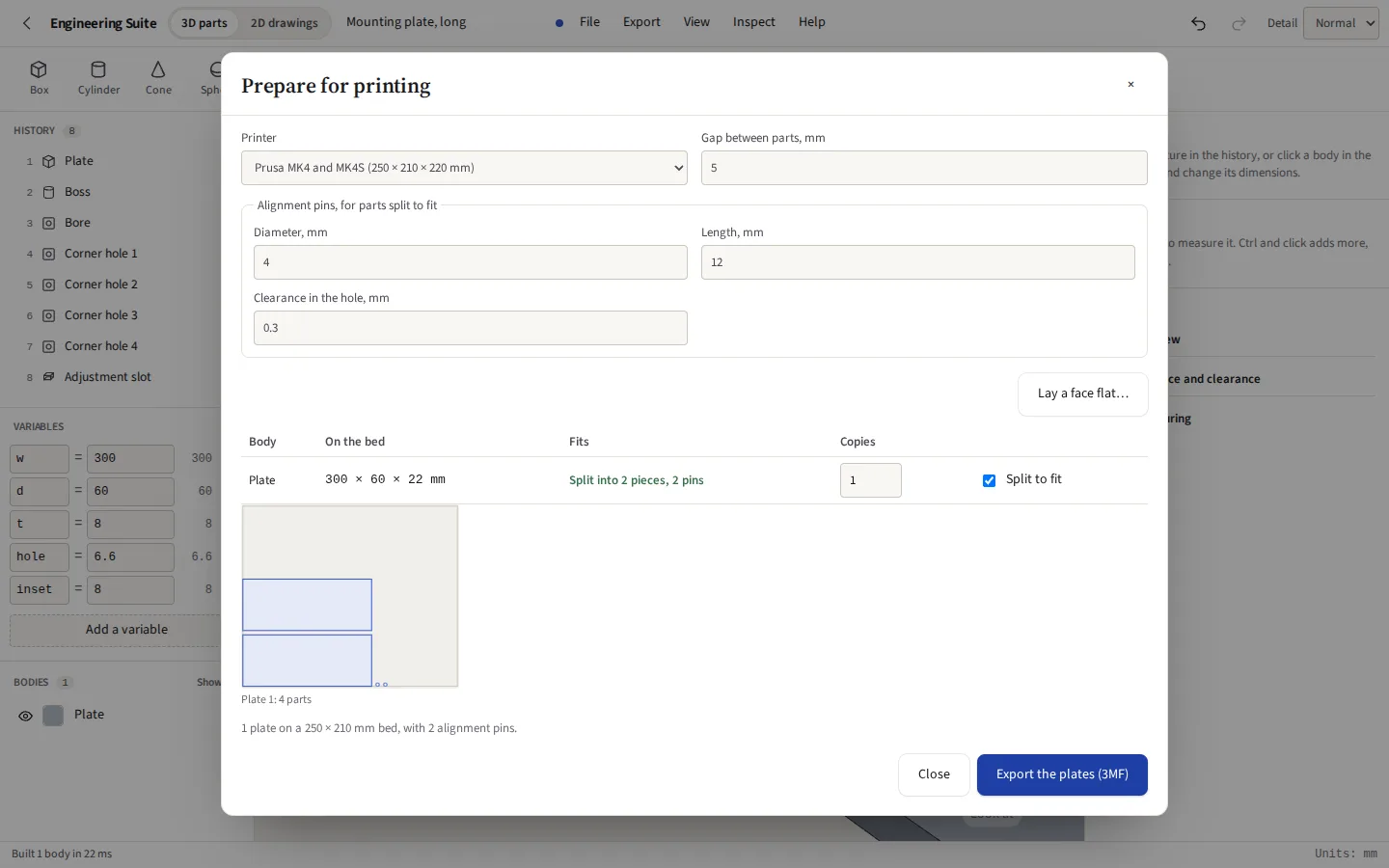
Taken from the suite itself, driven the way you would drive it. The 2D side, for drawings to scale and DXF, is Foundry, and comes with the same plan.
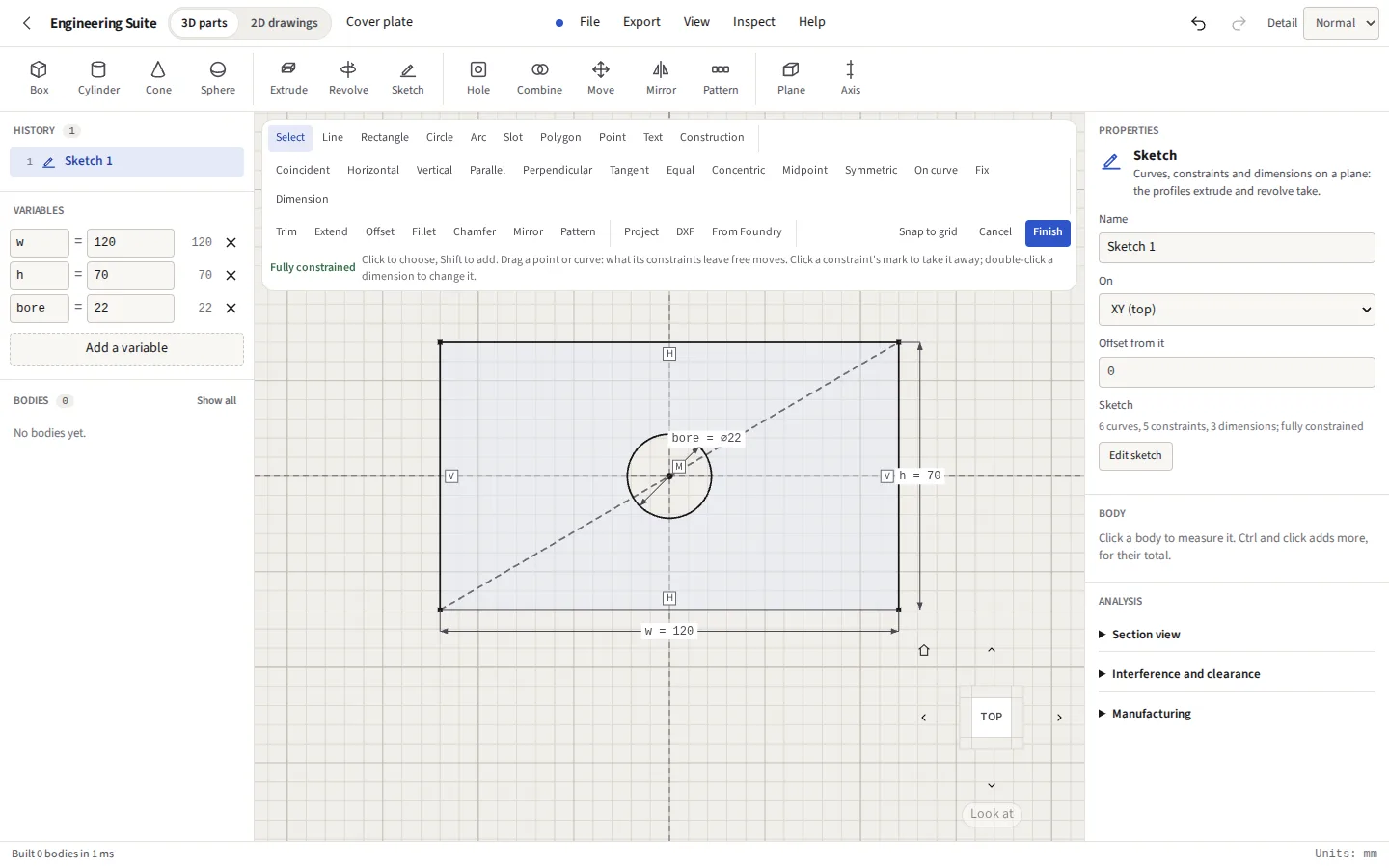

w and h, the bore as bore; change a variable and the sketch, and the part built on it, follow.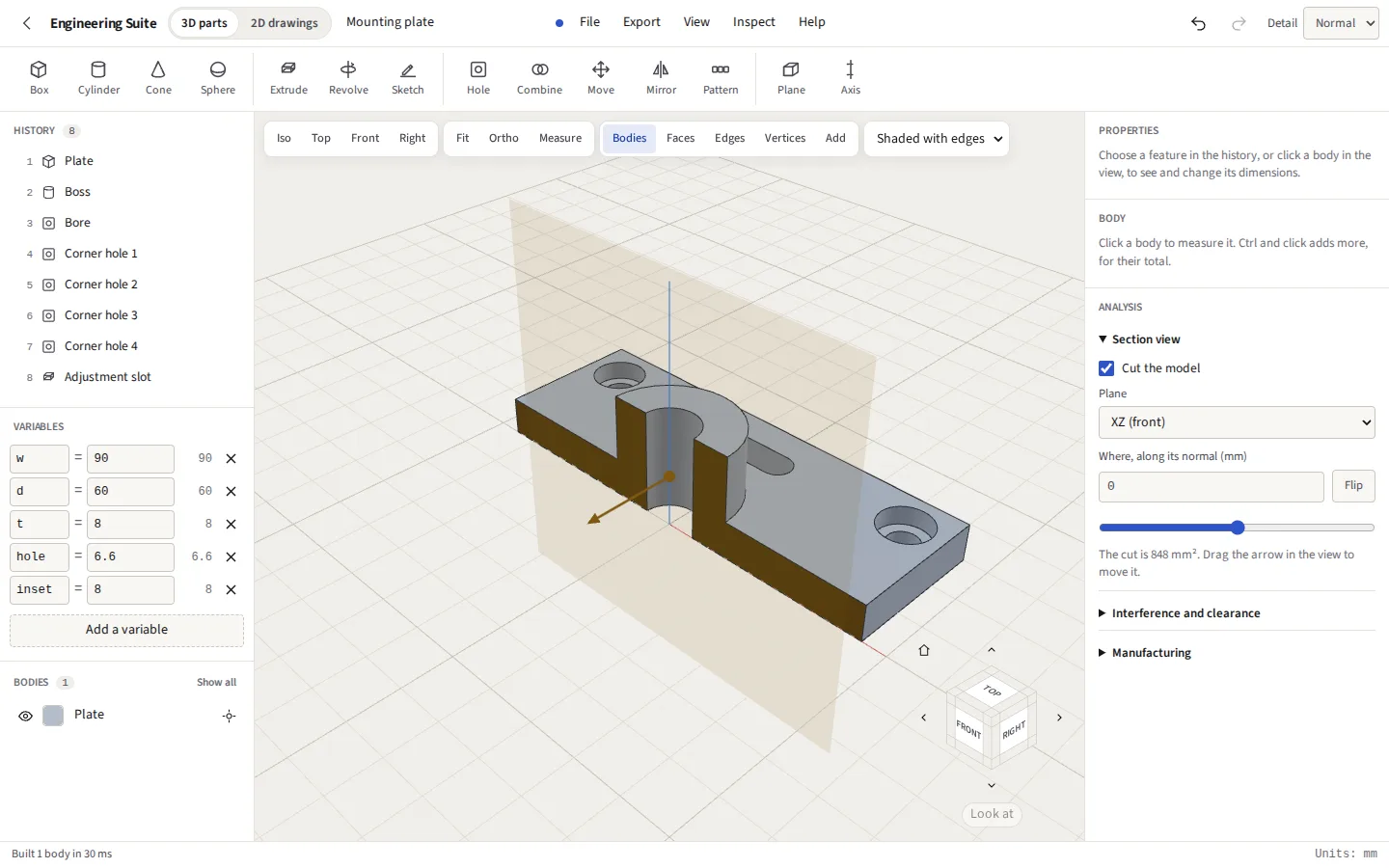



Everything it does
Sketch, constrain and build parts from dimensions you can change later, then send them to a printer or a machine shop. Measure a part, cut it open and weigh it. The geometry is worked out on your own computer, and your designs stay there. The 2D drawings are in Foundry.
Before you start: Stress analysis is linear and static, on one body at a time, and CAM is 2.5D: profiles, pockets and holes, not 3D surfacing. What else it does not do
Compared with Tinkercad and AutoCAD LT.
What it does
A part is a list of features and a few named variables. Every time anything changes the part is rebuilt from that list, so a dimension changed at the top of the history carries through everything after it, as in any parametric CAD program.
Sketching
Sketch on XY, XZ or YZ, on a construction plane or on a flat face of the part. Draw lines and tangent arcs in a chain, rectangles three ways, circles and arcs three ways each, slots, polygons and points, and construction geometry that shapes nothing. Type a size as you draw (40, or 40<30 for a length at an angle) and it becomes a dimension.
Constraints and dimensions
Coincident, horizontal, vertical, parallel, perpendicular, tangent, equal, concentric, midpoint, symmetric, on a curve and fixed, inferred as you snap or applied from the bar, and solved by FreeCAD’s solver. Dimensions measure lengths, distances, radii, diameters and angles; one that would over-constrain becomes a reference. Curves still free are drawn in the accent colour, and a conflict is named so it can be taken back.
Editing a sketch
Trim, extend, offset a chain, fillet and chamfer a corner, mirror, and pattern in a row or round a centre. Project the part into the sketch as reference geometry that follows it, bring in a DXF or the drawing open in Foundry, and add text as outlines or as single strokes for engraving.
Features
Extrude a sketch’s regions a distance, both ways, through everything or up to a body; revolve them about a line. Boxes, cylinders, cones and spheres; holes with counterbores; join, cut and intersect; move, mirror and pattern bodies. Construction planes by offset, angle, three points, midway or tangent to a cylinder, and axes.
Solid features
Round every edge of a body to one radius, outside, inside or both; shell it, closed or open on the faces you pick. Holes by kind (simple, counterbored, countersunk, counterdrilled or tapped) sized from ISO metric and Unified tables checked against published references, and threads modelled as true helices or kept as cosmetic threads for the drawing. Patterns in a row, a grid, round an axis or along a sketched curve; loft between profiles; sweep along a path; springs; split, trim, scale and hull; ribs; emboss and engrave; and draft and rounded edges on an extrude. Mesh tools find open and flipped edges in an imported file and split, simplify or smooth it.
Two kernels
Kernel, in the top bar, is Mesh or Exact. A new part is Exact; one brought in as an STL, OBJ or 3MF is Mesh, which builds from fine triangles and is quick. Exact builds with OpenCascade, the modeller FreeCAD uses: planes, cylinders, cones and spheres as they are, fillets and chamfers on the edges you pick (edges running on smoothly are rounded with them), a draft on chosen faces, a shell, loft and sweep with true surfaces (a sweep turned or scaled along its path is a smooth loft through sections set along it), ribs, sheet metal with true cylindrical bends, fillets whose radius is set at points along an edge, holes, pockets and bosses deleted or moved on any body (an imported STEP file too), a STEP file with real cylinders in it, and front, top and right views with hidden lines as a DXF. The exact kernel is 23 MB, fetched the first time a part is opened with a bar to show how far it has got, and kept for offline use; the part goes on building with the mesh kernel until it is ready.
Variables
Every number is an expression: 40, w/2 - inset, 2*pi*r, sqrt(a^2 + b^2). Name a dimension once in the Variables panel and use it anywhere; each field shows what its expression comes to, or why it cannot.
Units
A part is drawn in millimetres, centimetres, metres, inches or feet, and any field takes a unit: 1/4 in + 3 mm, 30 deg. The panels and measurements read in the part’s unit, and 3MF and OBJ are written in it. Changing the unit keeps the part’s size, or, for a part drawn in the wrong one, keeps the numbers.
Configurations
Sets of values for the variables, such as M6, M8 and M10 of one bracket, in a design table. Choose one and the part is built from it; export every configuration at once, a file each; bring the table in or take it out as CSV.
The history
Drag the rollback marker to build the part only up to a feature and add new ones there; roll to the first failure. Double-click a feature to edit it, rename it in place, drag it by its number, gather features into folders, and use each row’s menu. The undo history names every step, and a click goes back to any of them.
Keys, search and templates
E extrude, H hole and K sketch, as in Fusion where it has a key, and every feature can be given one of your own. S or Ctrl K searches every command, and the keys print on one sheet. Start from a metric, imperial, 3D printing or CNC plate template, or from an example: an angle bracket, an enclosure, or an involute spur gear made to your module and teeth.
Selection and measurement
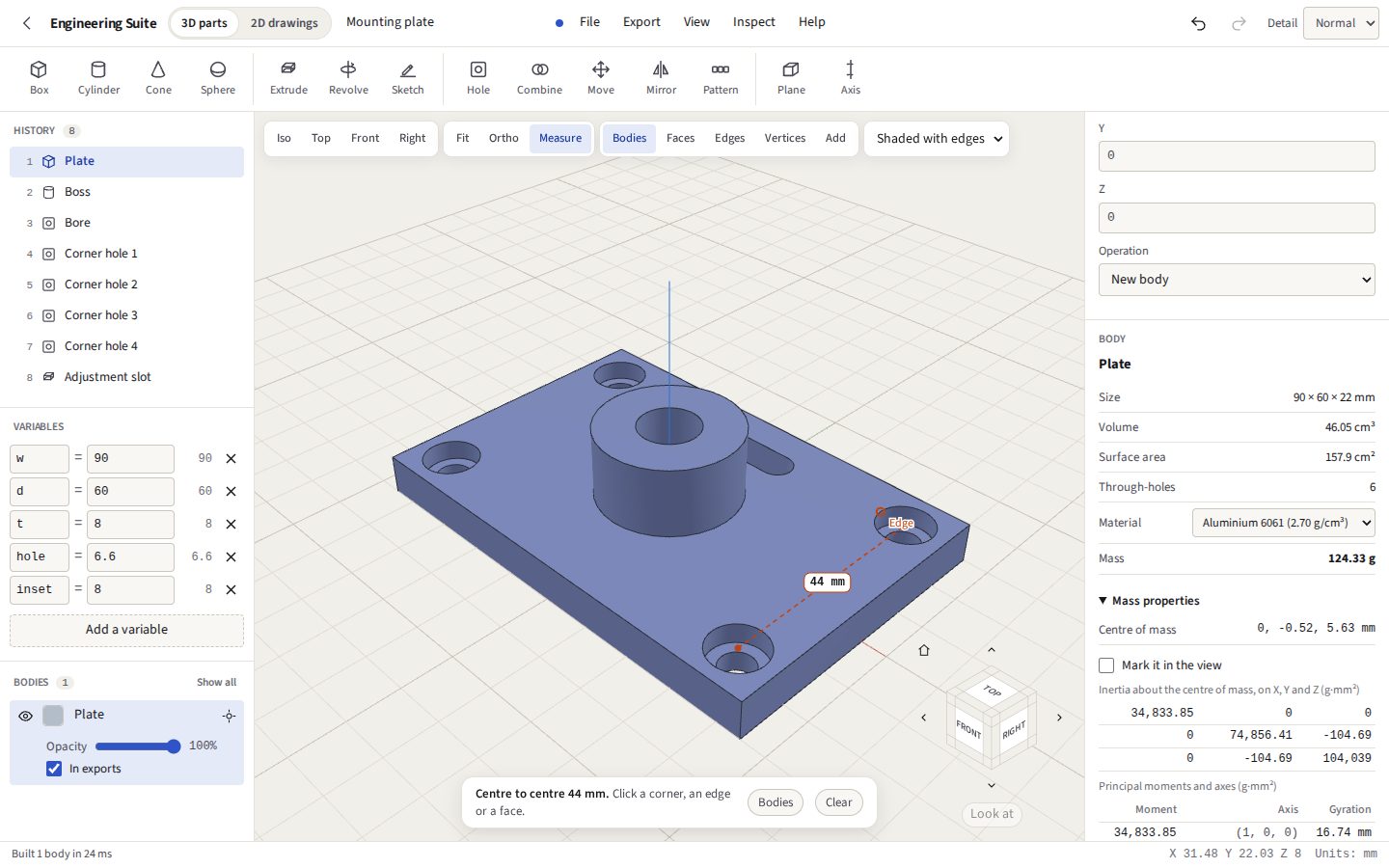
Pick bodies, faces, edges or corners in the view. Measure snaps to corners, midpoints and the centres of round edges, and gives what suits the pair: point to point with X, Y and Z, the distance between parallel faces or the angle between others, hole centre to hole centre, the smallest gap between two bodies.
Mass properties
Size, volume, surface area and through-holes for the chosen body, its mass in one of ten materials from PLA to titanium or a density you type, and in full: the centre of mass, the inertia tensor, principal moments and axes, and radii of gyration, for one body or several together.
Section and analysis
A section on any principal plane or a chosen face, moved and flipped, with the cut capped and measured. Interference and clearance between every pair of bodies. Colour maps of overhang against a build direction, draft against a pull direction, wall thickness and curvature, each with a report of how much of the surface is which.
Assemblies
Put parts together: parts kept on this device, a project, STEP or STL file, or standard parts made from their tables (ISO 4762 and 4017 screws, ISO 4032 nuts, ISO 7089 washers, 6000-series bearings and ISO 8734 dowels). Each part is kept in the assembly by its id and version, and says when it has changed. Join them with rigid, revolute, slider, cylindrical, planar and ball joints, limit how far they turn or slide, and drag a component as far as its joints allow; a loop of joints is solved too. Exploded views in steps, played and exported. A bill of materials with part numbers, materials and masses, saved as CSV and drawn as the parts list and balloons on a drawing. Interference between components, and a joint driven through its range to find where it first collides. Project edges into a part draws one part to fit another: a component’s outline or section is written into a sketch of another’s part, where the two sit, and brought up to date from the Assembly panel.
Bodies and views
Show, hide, isolate, rename and colour each body, or leave it out of the exports. Shaded, with edges, wireframe, hidden lines dashed, or see-through. A view cube, named views saved with the part, orbit or turntable, and a 3Dconnexion SpaceMouse in Chrome and Edge.
Printing
Choose a common printer or type a bed size, lay a face flat, and see each body on the bed, turned if that makes it fit. A body too big is split into as few pieces as the bed needs, with holes drilled across each cut for alignment pins, and the pins are made to print too. The plates export as 3MF.
Sheet metal
A Base flange makes a sketch’s outline a plate and sets the thickness, inside bend radius, K-factor and bend relief its flanges share. An Edge flange bends up or down from straight edges you pick, by any angle to 180°, set in from either end with a rectangular or round-ended relief cut beside it. File, Flat pattern lays it flat, each bend as long as its bend allowance, BA = π/180 · angle · (R + K·T), and saves it as a DXF with the outline, the bend lines and their notes on layers of their own, or sends it to Foundry’s laser and router dialog. Checked against that formula for five sets of angle, radius, K-factor and thickness, and read back by ezdxf: a 100 × 60 plate, 2 thick, with a 90° flange 20 long at R3 and K 0.44, lies flat at 100 × 86.0947 mm. Holes cut afterwards come into the flat pattern where they fall, one drilled across a bend unbent along the bend’s neutral axis.
CAM from the part
File, CAM: pick flat faces facing up and holes, and choose for each a pocket (its floor), a profile round it, or a drilled hole. The depths are the model’s, below the top of the stock; the paths and the G-code for GRBL or LinuxCNC are worked out by the same code that cuts Foundry’s drawings. Pockets are cleared from the middle out by offsets of their walls, a stepover of up to half the tool apart, level by level; a hole no wider than the tool is drilled, pecking; a wider one is milled out round. Holes come first and the outline last, so the part is cut free at the end. Checked on an 80 × 60 × 10 plate with a 4 mm pocket and two holes: every Z in the program matches the face it was taken from, and the pocket never comes nearer its walls than the tool’s radius.
A rendered picture
Export, Rendered picture draws the view in each body’s material, aluminium, steel, brass and titanium as metals, the plastics and oak as they look, under a soft studio light made on your computer from a lit room (no picture is fetched), and saves it as a PNG up to four times the screen’s size, with a transparent background if you like. It is drawn by your graphics card through WebGL, as the view is, so how quickly depends on the computer.
Keeping your work
Every part and drawing is kept in the browser as it changes, with versions taken by themselves and ones you name, such as Rev A. A part left by a crashed tab is offered back. Where the browser allows it (Chrome, Edge, Opera) Save writes back to the file you opened.
Part properties
Part number, revision, designer, material, finish and your own fields, carried into the title block of a drawing and into the 3MF and STEP files you export.
Files it opens and writes
| Format | Opens | Writes | Notes |
|---|---|---|---|
| STEP (.step, .stp) | Yes | Yes | Read through Open CASCADE, each solid a body with its faces. Written as a faceted solid with the part’s number, name, revision and colour, or with the exact kernel as true surfaces (AP214) with each body’s name and colour |
| IGES, BREP | Yes | No | Read through Open CASCADE |
| 3MF | Yes | Yes | Colours, units and the part’s properties; a plate per file from Prepare for printing |
| STL | Yes | Yes | Binary or ASCII, in millimetres or other units, one file per body if you like |
| OBJ | Yes | Yes | With its .mtl colours |
| glTF (.glb), USDZ | No | Yes | For the web, and for AR on Android and iPhone |
| DXF | Into a sketch | Drawing views, flat patterns | A DXF comes into a sketch in millimetres. With the exact kernel, front, top and right views of the part are written with true arcs, hidden edges dashed; other drawings are made in Foundry |
| G-code (.nc, .ngc) | No | Yes | From File, CAM: profiles, pockets and drilled holes, for GRBL or LinuxCNC, in millimetres |
| PNG | No | Yes | A picture of the view, larger than the screen, with a transparent background if wanted; or rendered, each body in its material under a studio light |
| Project file (.json) | Yes | Yes | The whole part: its history, variables, sketches and settings |
What it cannot do yet
Said now, so that nobody pays to find out.
- Some features are the mesh kernel’s alone. Round all edges, springs, split, scale, hull, emboss, modelled threads, the mesh tools, an imported mesh and an extrude up to a body are built only with Kernel set to Mesh; so are a rib pushed square to its sketch onto anything but a flat face square to it, and a sweep turned or scaled along a closed path or one with a sharp corner. Set to Exact, each says so on its row and the rest of the part builds. The exact kernel’s turned or scaled sweep is a smooth loft through sections set along the path, within 0.3% of the swept volume in the check; its rib meets a curved wall’s facets, sunk into it by a hair. Round all edges rolls a ball over the whole body: every edge takes the same radius, and anything thinner than twice it is lost. Fillets and chamfers on chosen edges need the exact kernel.
- A loft takes single-loop profiles. A profile with a hole in it is refused, with the reason.
- Assemblies have six kinds of joint. Rigid, revolute, slider, cylindrical, planar and ball. When a part is brought up to date and has changed shape, each joint is found again by what it was attached to; where that is no longer on the part, the joint says so and keeps the place it had until you pick it again. There are no gear, cam or contact joints, and no motion study beyond driving one joint through its range and checking for collisions as it goes. In an assembly set to the exact kernel, a part with features only the mesh kernel makes says so on its component’s row. Standard parts have plain threads, and a bearing is its rings as one solid, without its balls.
- With the mesh kernel, curved faces are facets. Manifold, the library OpenSCAD uses, works on exact booleans of fine triangle meshes, not on exact surfaces: its STEP is a real solid, but a cylinder in it is a ring of flats. The exact kernel writes true surfaces; it needs about 100 MB of memory, and on a phone that cannot spare it the part stays with the mesh kernel and says why.
- IGES is read, not written. The OpenCascade build the suite uses has no IGES writer; write STEP.
- An imported STEP has no feature history. It becomes a body you can place, measure, cut, join, push or pull by its flat faces, and whose holes, pockets and bosses can be deleted or moved (with the exact kernel); the features it was made with are not rebuilt as a tree to edit, and a curved face of it cannot be pushed or pulled.
- Drawings update by a round trip. File, Make drawing puts the views on a Foundry sheet; when the part changes, Update views re-projects them through the 3D page. Hole callouts recognise through, blind, counterbored and countersunk holes, the countersink from its cone; a thread is called out from the hole or thread feature that recorded it (cosmetic or modelled), not read from the shape, so a thread in an imported STEP is not. The thread’s class is the usual one for a tapped hole, 6H or 2B, as drawings give it unless told otherwise.
- Stress analysis is linear and static, on one body. Inspect, Stress analysis fills the body with up to fifty thousand bricks and works out von Mises stress, displacement and the factor of safety against yield, for faces held or sliding, forces, pressures and the part’s own weight. The material is linear elastic and the same in every direction (printed plastics and wood are not, and the answer says so); displacements are taken as small and loads as staying put. There is no contact between bodies or the parts of an assembly, no buckling, vibration, heat, fatigue or plasticity, and curved or sloping faces are stepped by the bricks, so the peak stress at a fillet or a sharp corner is an estimate. Treat it as a first check, not a certificate.
- CAM is 2.5D. File, CAM cuts profiles, pockets and holes at the depths of flat faces facing up (+Z), with one tool a program; it plunges rather than ramping, so use a centre-cutting end mill. A pocket with an island standing in it is refused, and there is no 3D surfacing, no tool change, no simulation of the material and no rest machining. Check every program in your machine’s own software, or cut air first.
- Rendering is not path traced. A rendered picture is the view drawn with physically based materials and a studio light, in one pass by the graphics card: no path tracing, no shadows on a floor, no HDR photographs of real places, and no material other than the ten the suite knows.
- Sheet metal is a first version. Bends are straight and on the base flange’s own edges: there is no flange on a flange, no hem tool, no contour flange from an open sketch, and corners between two flanges are left open, with no corner relief or mitre. The bend is made outside the sketch’s outline. The flat pattern is worked out from the flanges with the K-factor, not by unfolding the solid; holes cut by later features are laid into it where they fall, one across a bend at the size its middle has on the neutral axis.
- Faces are deleted only where nothing has to grow. Delete face and Move face take away a hole, a pocket, a slot or a boss, whose gap the face around it closes. Closing a gap by extending the faces beside it, as deleting a fillet, a chamfer or a block’s side needs, is OpenCascade’s defeaturing, which the build used here does not include: such a face is refused, with the reason.
- One part’s edges in another are a snapshot. Edges projected from an assembly are kept in the part, so it opens on its own; they follow the other part when Update is pressed in the Assembly panel, not by themselves, and only a part kept on this device can take them.
- A few hole sizes could not be checked. The hole tables were checked against published references to the ISO and ASME standards; the counterbores for inch cap screws and for M30 and M36 were not confirmed by a second source, and the hole says so on its row. No countersink size is given for M24 and up: type the screw maker’s.
- Configurations change numbers and features, not drawn shapes. A configuration sets variables, which features are built and the numeric fields given values of their own; a sketch’s lines are the same in every one, so a shape that differs is driven by variables or made by a feature left out.
- Some parts stay in millimetres. STL is written in millimetres unless you choose otherwise, since slicers read it so; Prepare for printing, and the limits typed in the analysis panel (the thinnest wall allowed, the gap between bodies to flag), are in millimetres whatever the part’s unit.
- The example gear is a plain outline. Its teeth are true involutes with no undercut modelled, which holds from about 17 teeth at 20°; its outline is fixed when it is made, so change the module or teeth by making it again.
- Faces are found again by rule. A sketch placed on a face is re-found after each change by its direction and position; if the face has gone, the sketch says so rather than moving somewhere else. That holds for the usual prismatic part and is not a guarantee.
The example part, to open in your slicer
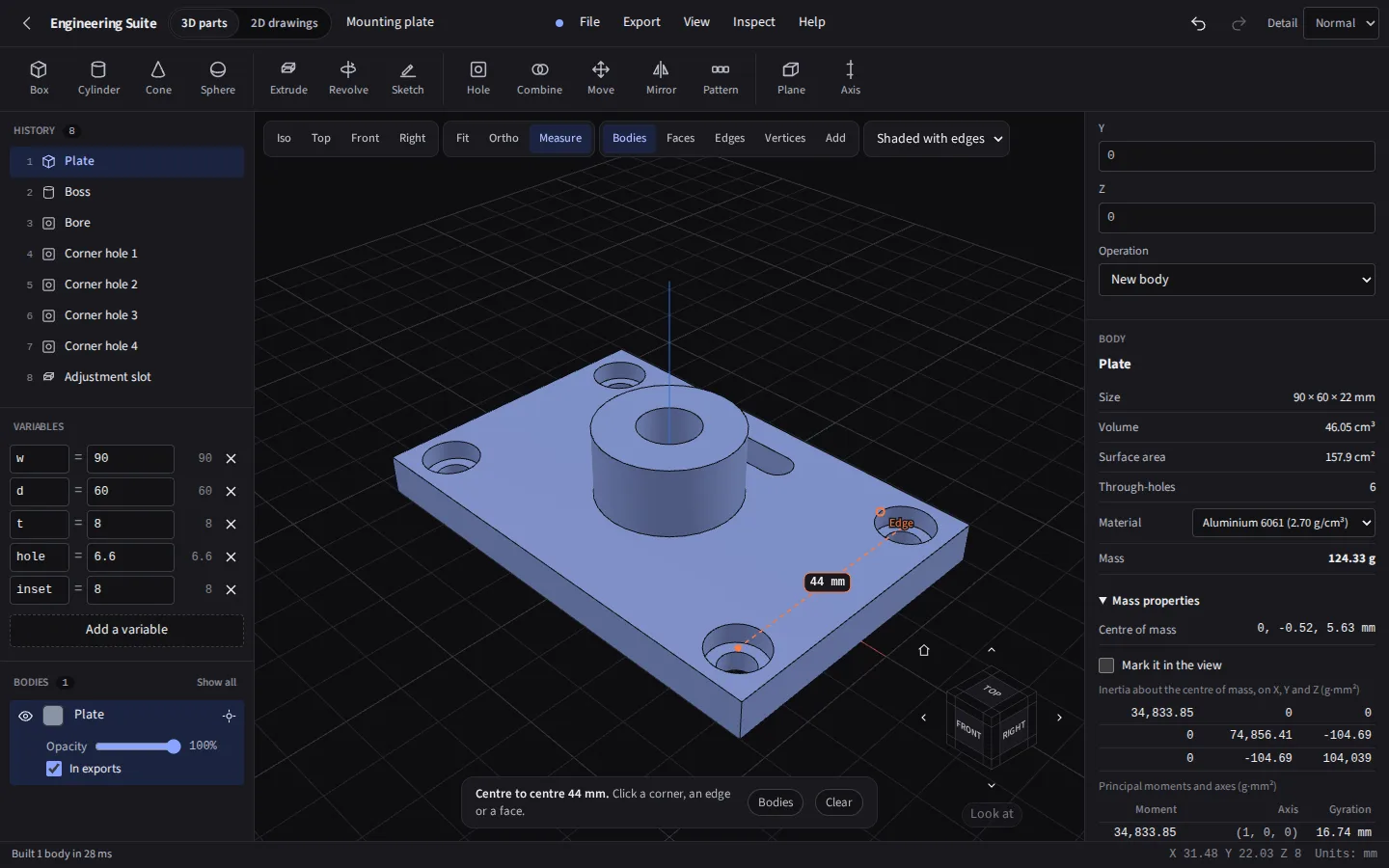
The mounting plate in these pictures, exported by the suite: 90 × 60 mm, 8 mm thick with a 28 mm boss and a 12 mm bore, four 6.6 mm holes counterbored 11 mm, and a slot. In 6061 aluminium it weighs 124 g.
Compared with what you may use now
Against Tinkercad and Onshape: what each keeps on whose computer, what each costs, and where each is the better choice. For 2D drafting, Foundry against AutoCAD LT. And two problems the suite was built around: an STL the wrong size in the slicer, and a DXF that opens at the wrong scale.